Catalog & Inventory
Set up your services, products, memberships, vouchers, bundles, and manage stock
The Catalog is where you define everything your salon offers — the services your team performs, the products you sell, membership packages, gift vouchers, service bundles, and your product inventory. Think of it as the foundation that powers your bookings and checkout.
Click Catalog in the left menu to get started. You will see six tabs at the top: Services, Products, Memberships, Vouchers, Bundles, and Stock Audit.
Services
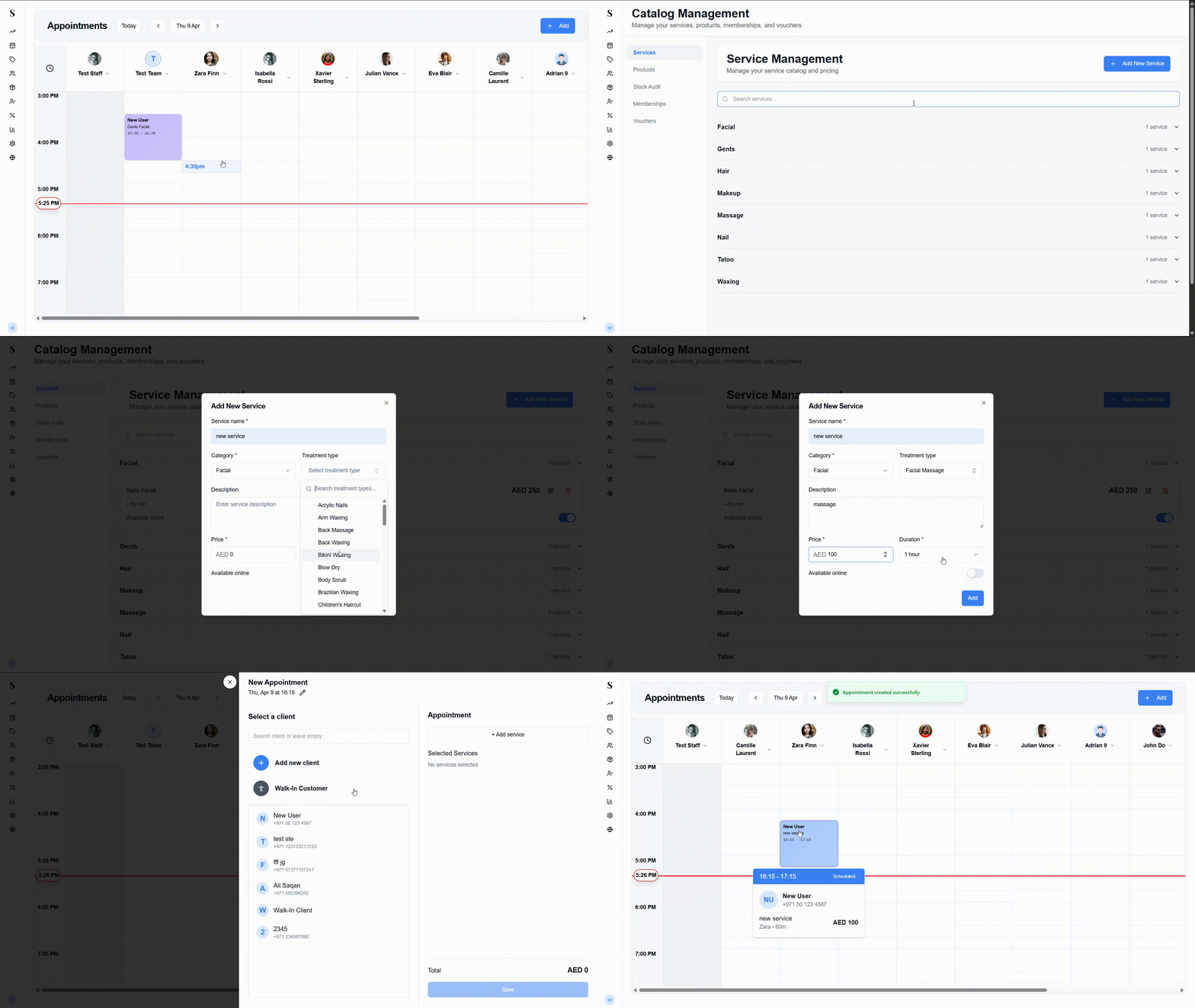
Services are the treatments your team performs — haircuts, color, manicures, massages, and so on. Every service you add here will be available to select when booking an appointment.
Adding a service
Go to Catalog → Services and click Add Service.
Give the service a name, choose a category (e.g., Hair, Nails), set the duration in minutes, and enter the price.
Make sure the status is set to Active — only active services show up when booking.
Click Save.
Editing or removing a service
Click the Edit icon on any service to update its details. If you want to stop a service from showing up in bookings without deleting it permanently, just toggle the status to inactive. To remove it entirely, use the Delete option.
Products
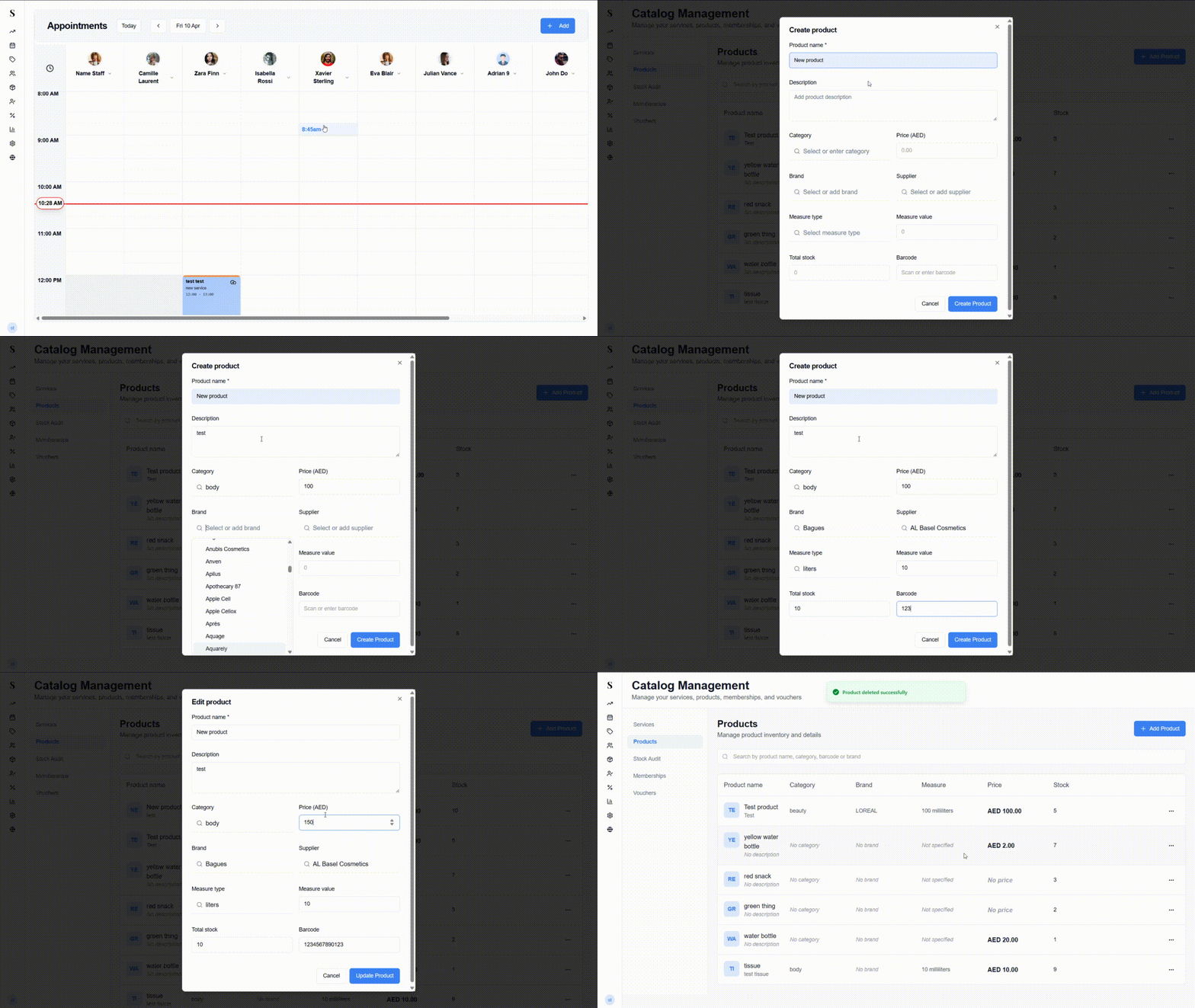
Products are the retail or consumable items you sell or use in your salon — shampoos, styling products, skincare, and so on. NxCut tracks your stock levels automatically as products are sold.
Adding a product
Go to Catalog → Products and click Add Product.
Enter the product's name, brand, category, and supplier.
Set the selling price and the cost price (what you pay the supplier).
Enter your current stock quantity.
Toggle it to Active so it is available to add during checkout.
Click Save.
Every time a product is sold at checkout, your stock count goes down automatically. Use the Stock Audit tab when you want to check your physical stock against what the system shows.
You can filter the products list by brand or supplier using the filter dropdowns at the top of the page — useful when you are placing orders or reviewing what you carry from a specific supplier.
Memberships
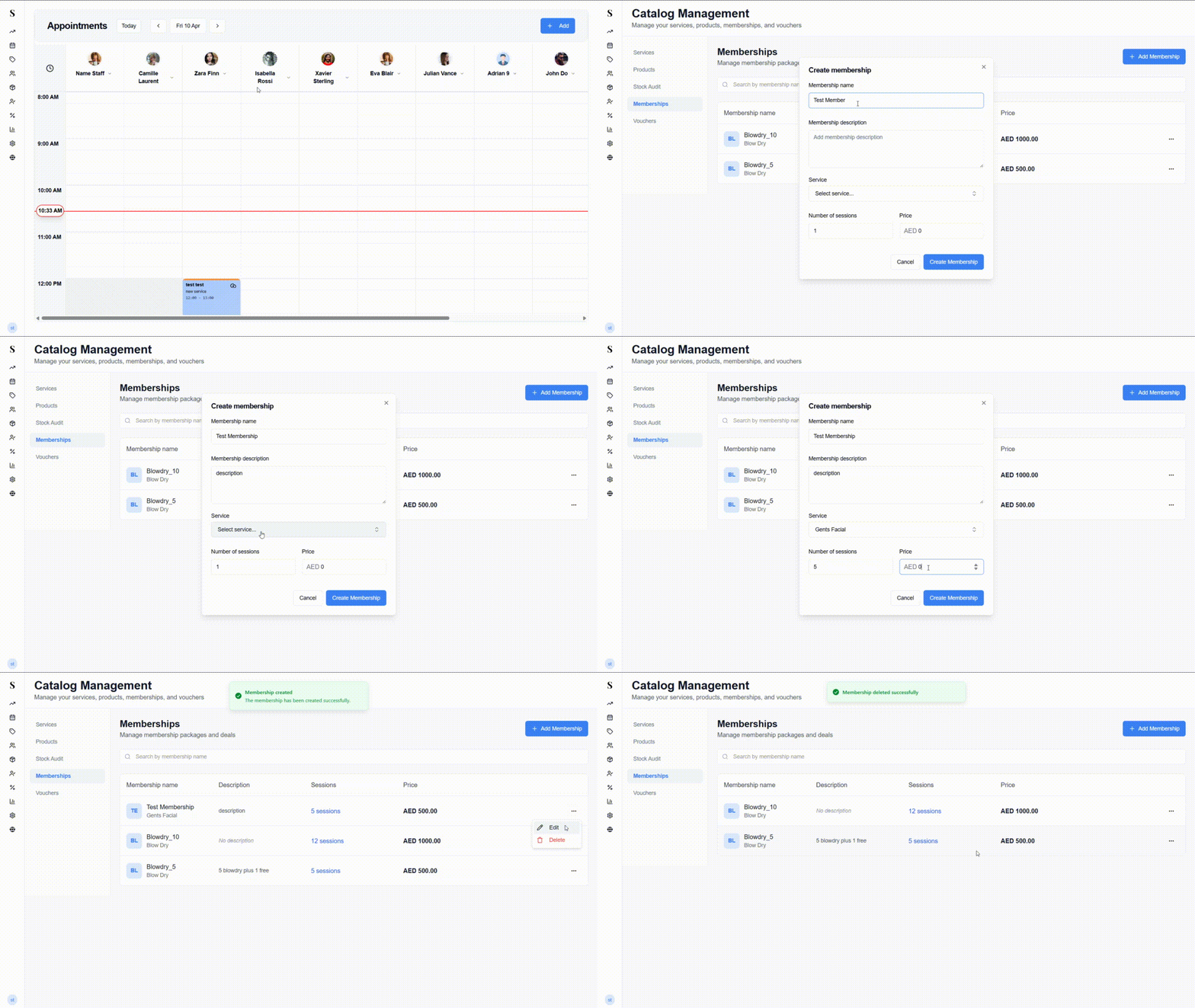
Memberships are prepaid session packages — a client pays upfront for a bundle of appointments (for example, 10 haircuts for the price of 8). Each time they come in and use a session, it is deducted from their balance automatically.
Creating a membership
Go to Catalog → Memberships and click Add Membership.
Give the membership a name and choose which service it applies to.
Set the number of sessions included and the total price.
Optionally set an expiry period — for example, all sessions must be used within 12 months of purchase.
Click Save.
Once a client buys a membership at checkout, their session count is tracked automatically on their client profile. Sessions are used up each time they check out using that membership.
Vouchers
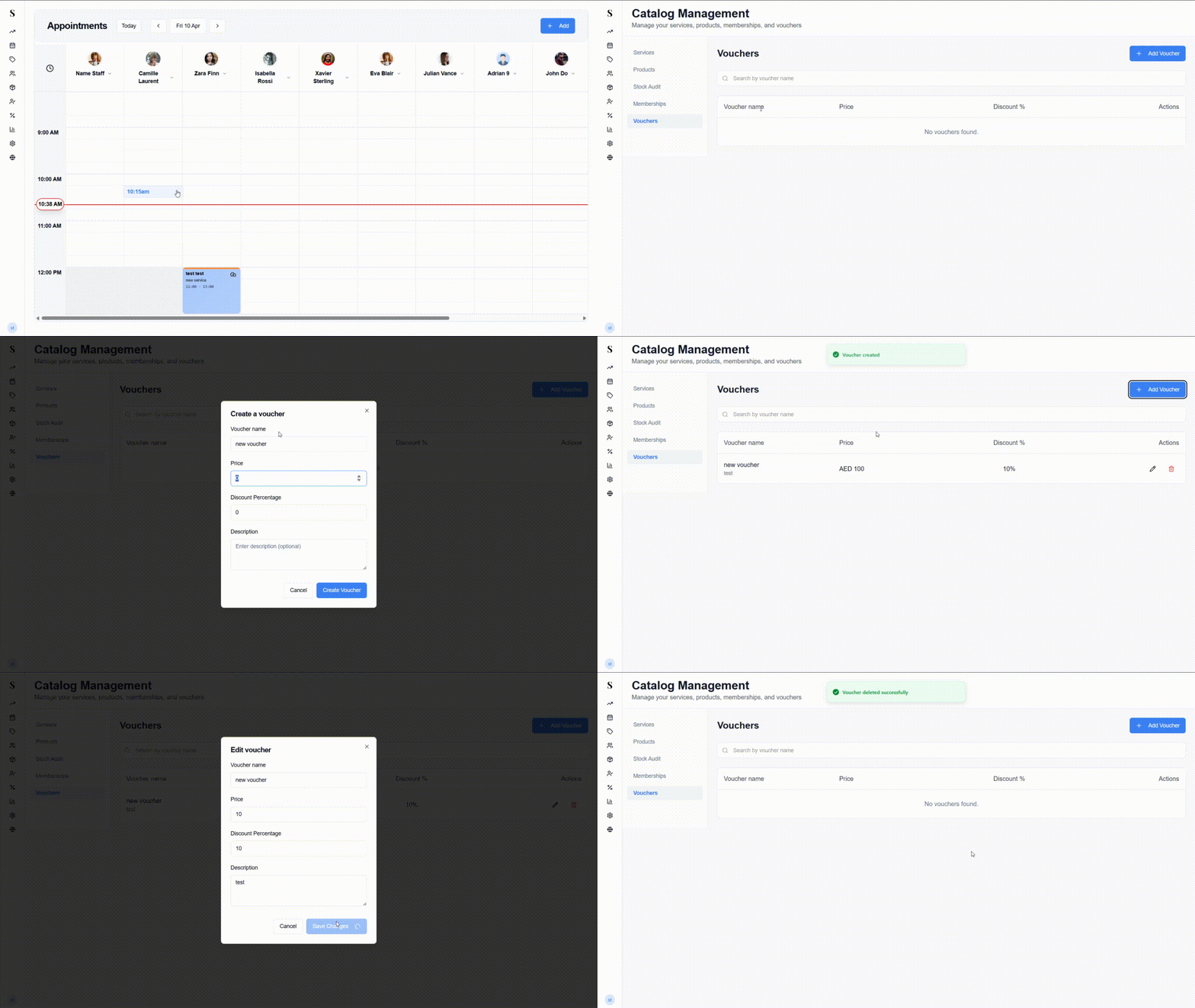
Vouchers are gift cards or discount codes that clients can redeem when paying for services or products. You set the value (either a fixed amount or a percentage off), and NxCut tracks how much has been used and what is left.
Creating a voucher
Go to Catalog → Vouchers and click Add Voucher.
Give the voucher a name and choose the discount type: a fixed amount (e.g., AED 100 off) or a percentage (e.g., 20% off).
Create a voucher code — this is what the client enters at checkout.
Optionally set an expiry date and a usage limit (e.g., can only be used once).
Click Save.
You can check a client's remaining voucher balance and full usage history on their profile under Clients → Voucher Activity.
Bundles
Service Bundles let you group multiple services together into a single package. When a client books a bundle, all the included services are added to their appointment at once.
For full details on creating and managing bundles, see the Service Bundles page.
Stock Audit
A stock audit is how you check that your physical inventory matches what NxCut thinks you have. It is good practice to run one regularly, especially if products are used during services as well as sold.
A stock audit moves through three stages: Stock Session → Stock Entry → Stock Review. Each stage has its own status so you always know where an audit is up to.
| Status | What it means |
|---|---|
| In Progress | The audit is open and items are being counted |
| Review | Counting is done — ready to review and confirm |
| Completed | The audit is finalised and can no longer be edited |
Step 1 — Stock Session
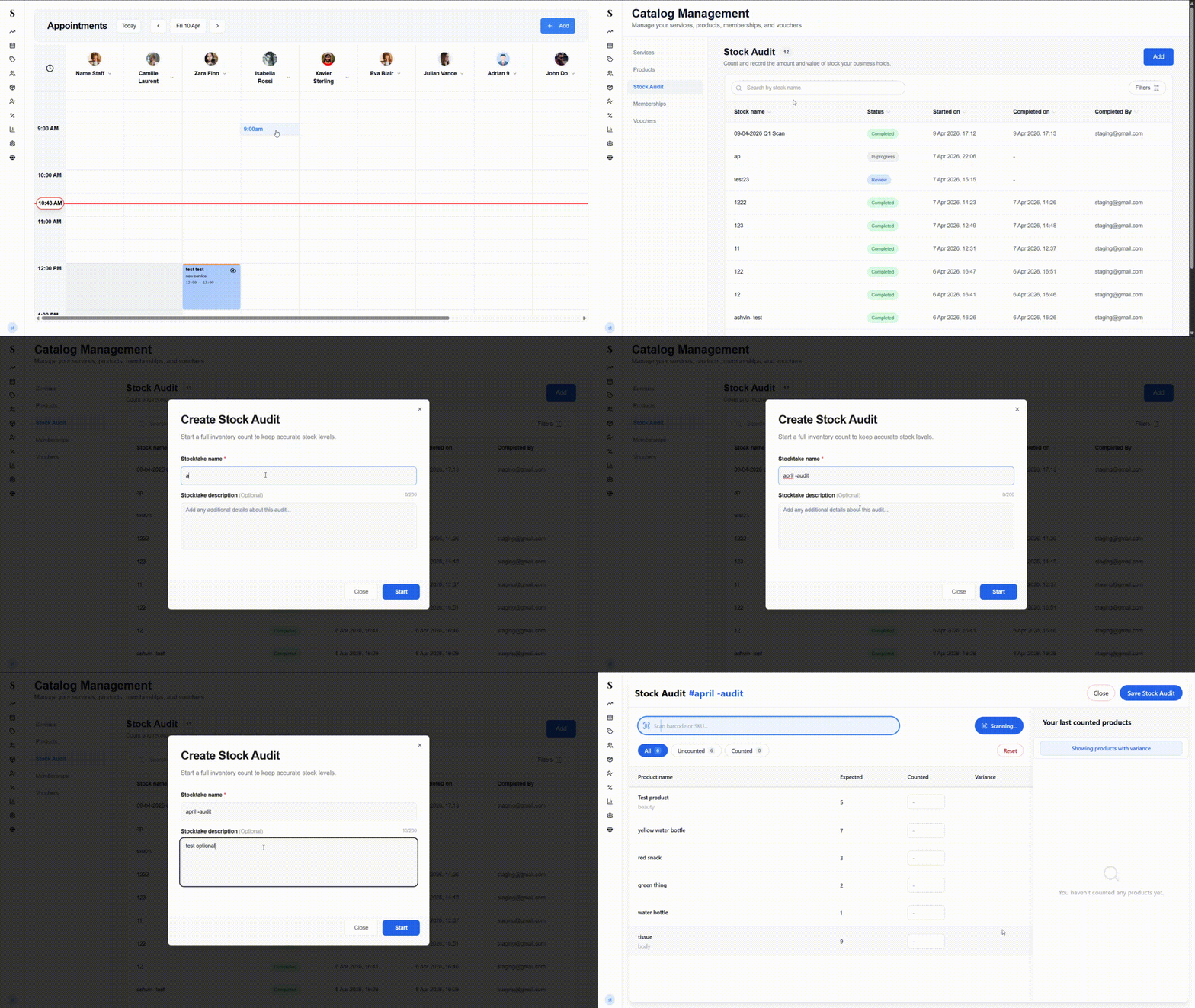
Go to Catalog → Stock Audit and click Start New Audit Session.
Select the products you want to include in this count.
Click Start to begin. The audit moves to the Stock Entry stage.
Step 2 — Stock Entry (Counting)
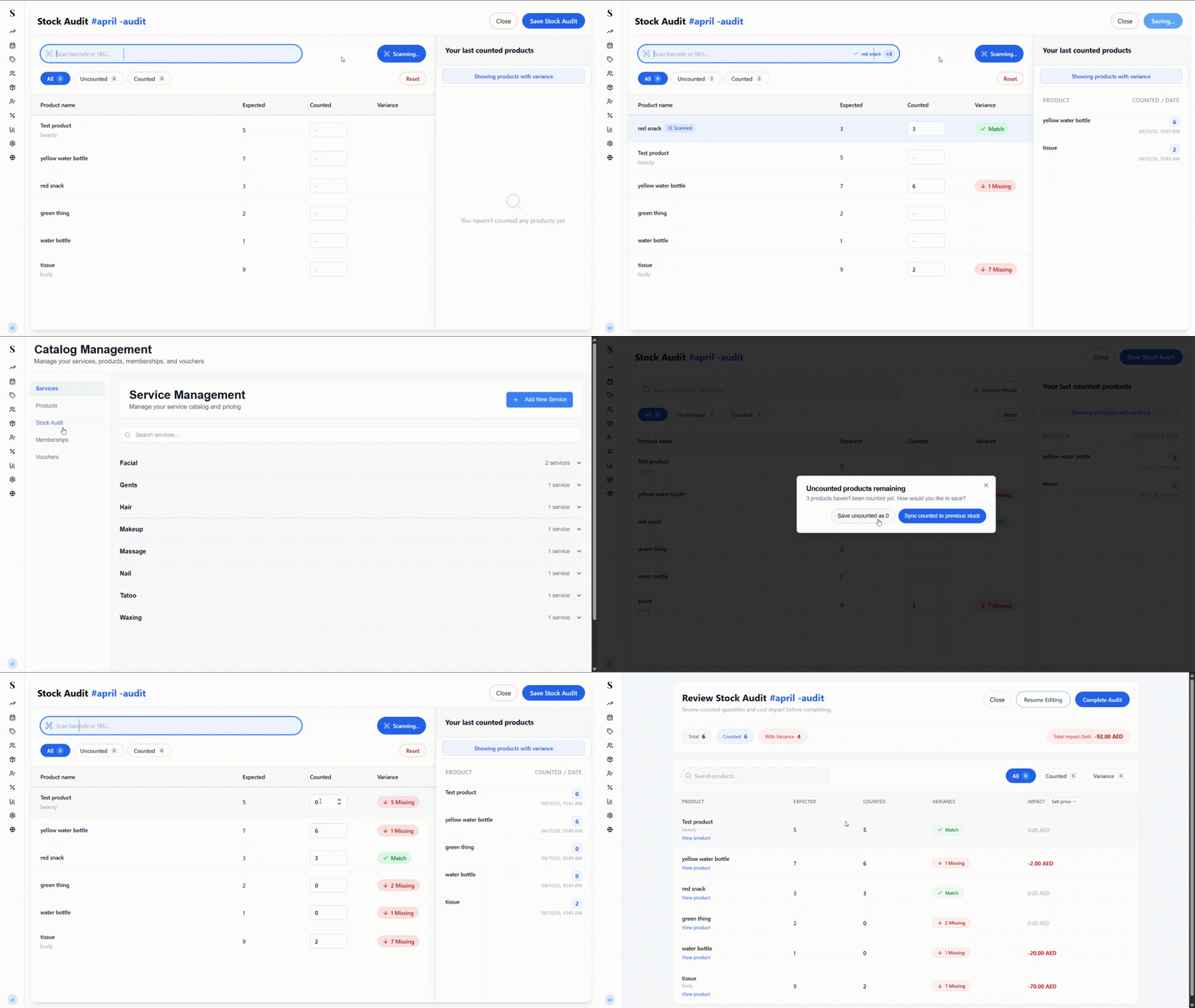
This is where you physically count your stock. The entry screen opens in barcode mode by default — just scan a product's barcode and NxCut will find it automatically and add 1 to its counted quantity. Each scan is saved instantly, so you do not need to do anything extra.
Scan the same product multiple times to keep adding to its count — each scan increments the quantity by 1.
If you click Save Stock Audit before finishing:
A dialog will appear telling you how many products still have not been counted (e.g., "5 products remaining"). The only option here is Continue — this sends you back to finish counting before the audit can be saved.
If you click the X (close) button before finishing:
A dialog titled "Uncounted products remaining" will appear, asking how you would like to handle the items you did not get to. You will have two choices:
- Save uncounted as 0 — records those products as having zero stock on the shelf. Use this if you genuinely checked and found nothing.
- Sync counted to previous stock — leaves those products at whatever stock value was already in the system. Use this if you simply did not get around to counting them and do not want to affect their records.
Not sure which to pick? If you did not actually check those products, choose Sync counted to previous stock — that way only the items you physically counted will be updated.
Step 3 — Stock Review
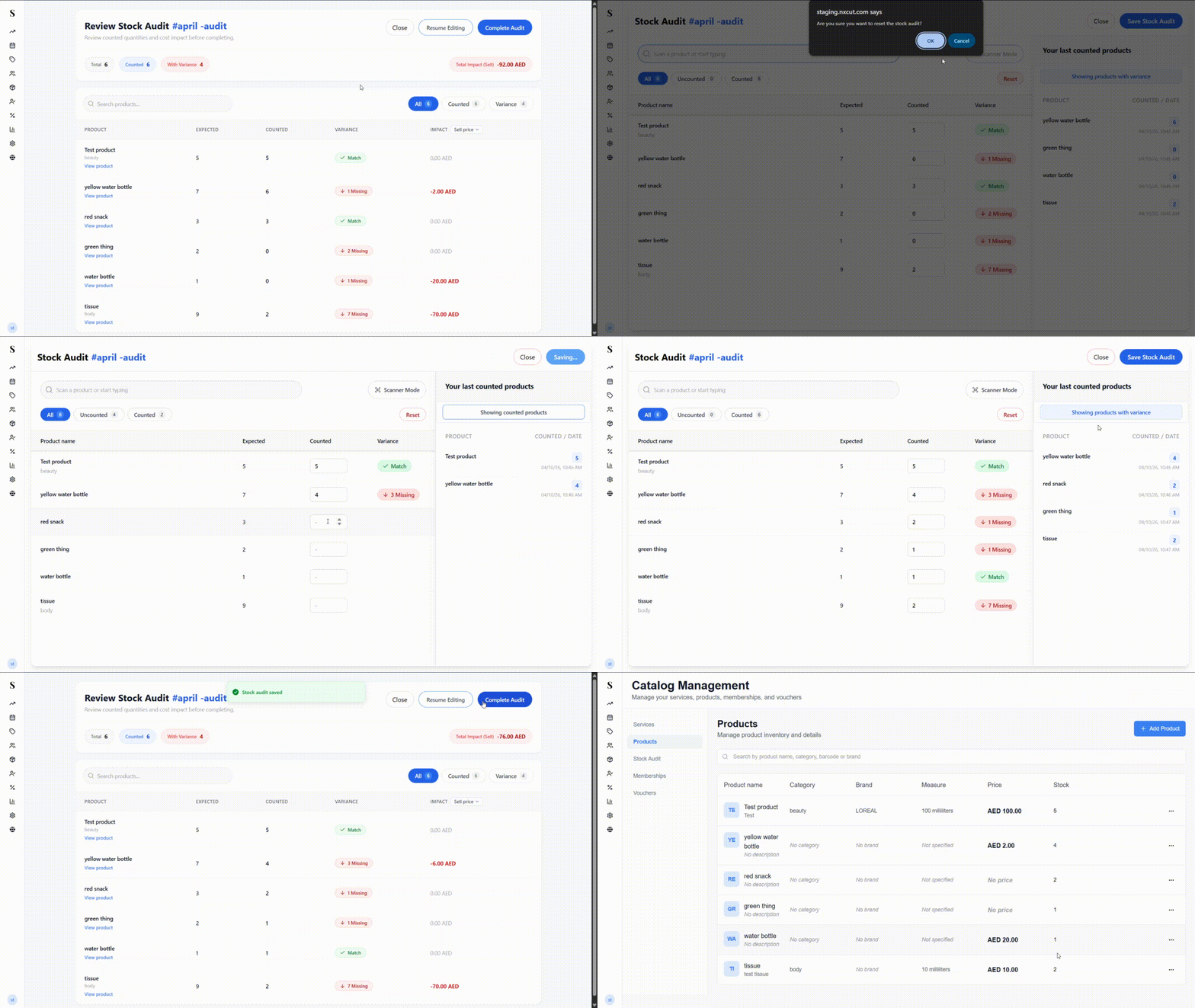
Once all items are counted and saved, the audit moves to Review status. On this page you will see:
- An overview of every product that was counted
- The quantity difference between what the system expected and what you physically counted
- The price difference — the value impact of any discrepancies
- A subtotal of counted value and a total value summary
From here you can:
- Resume editing — go back and adjust any counts before finalising
- Complete the audit — confirm the counts are correct and lock the audit
- Reconcile — if this stock intake is tied to a supplier delivery, you can open the reconciliation dialog to compare what was ordered against what arrived
The Reconcile option connects your stock intake with your supplier quotes. If a delivery does not match the order, you will see the discrepancy here before finalising.
Once you click Complete, the audit is finalised and cannot be edited. Make sure everything looks right before confirming.
Catalog overview
| Tab | What it is for |
|---|---|
| Services | The treatments your team performs |
| Products | Retail and consumable items, with automatic stock tracking |
| Memberships | Prepaid session bundles for specific services |
| Vouchers | Gift cards and discount codes |
| Bundles | Group multiple services into a single bookable package |
| Stock Audit | Count your physical stock and spot any discrepancies |