Suppliers
Manage your suppliers, search their catalogs, upload quotes, and reconcile stock intake
The Suppliers section is where you manage your product suppliers — search their catalogs, upload supplier quotes, create purchase orders, and reconcile stock intake against what you ordered.
Click Suppliers in the left menu to get started.
The Suppliers feature is currently in Beta. Some functionality may evolve as we gather feedback.
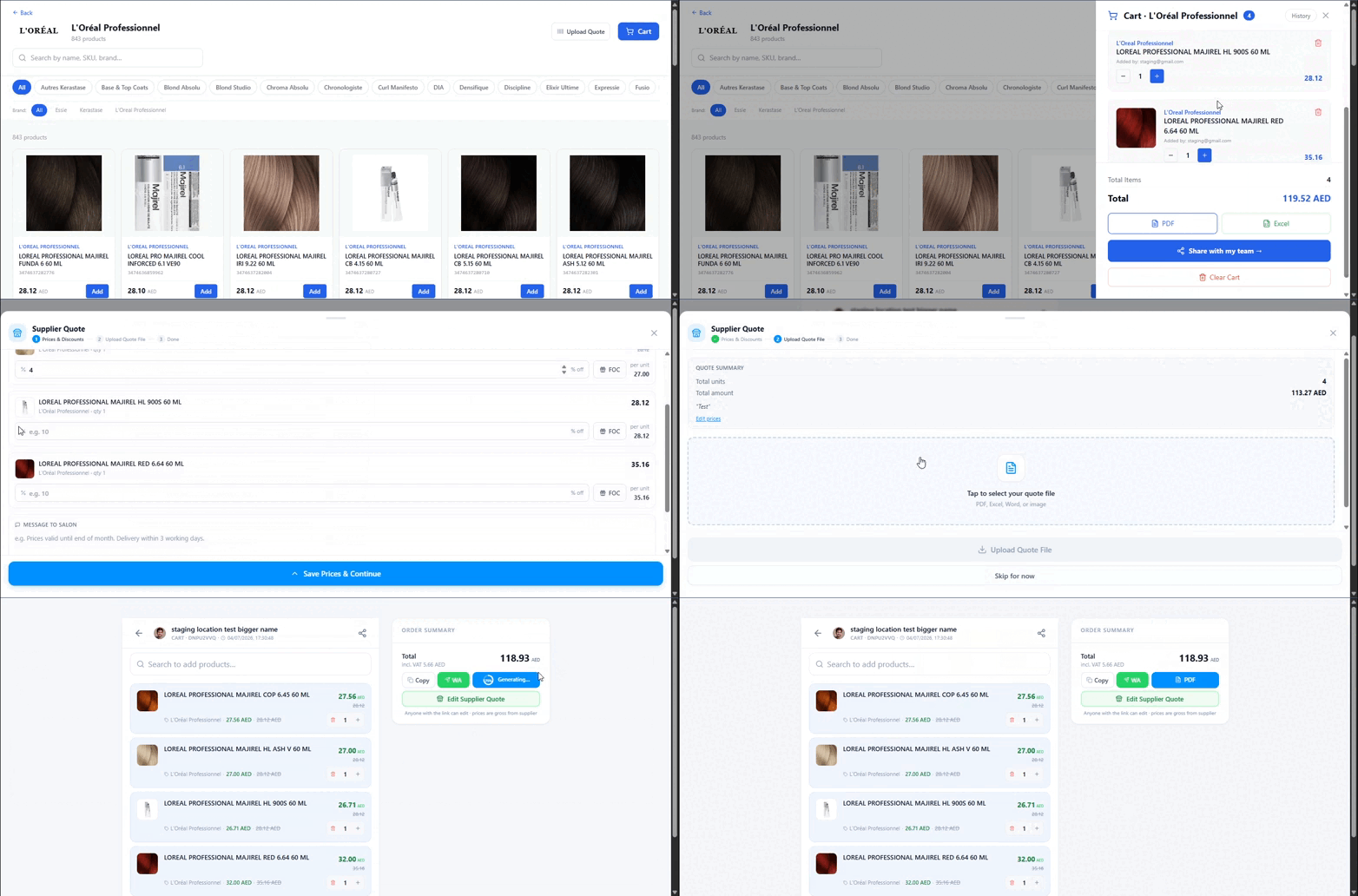
Finding a supplier
The main Suppliers page shows a searchable catalog of suppliers. You can:
- Search by supplier name to find what you need
- Type free-text — the autocomplete will match as you type, no need to pick from a predefined list
- Filter by brand to narrow down suppliers that carry specific brands
Browsing a supplier's catalog
When you click on a supplier, you'll see their product catalog including:
- Product names and images
- Brand information
- Available quantities and pricing
- A photo thumbnail for quick visual identification
Use the supplier catalog to compare products and prices before placing an order.
Purchase Orders (PO)
When you've selected products from a supplier's catalog, you can create a purchase order. Products added to a PO cart will show:
- Product name and photo
- Quantity ordered
- Unit price
- Total value
The PO cart uses shared sessions per location — if multiple staff members are working on the same order, they'll all see the same cart.
Supplier Quotes
Instead of entering prices manually, you can upload a supplier's quote directly.
Uploading a quote
Navigate to the supplier's page.
Click Upload Quote and select the file from your computer.
The system will read the quote and populate the products and pricing automatically.
Updating a quote
If a supplier sends a revised quote, you can update it at any time — just upload the new version and it will replace the existing one.
Reconciling Stock Intake
When you receive a delivery from a supplier, use the Reconcile feature to compare what was ordered against what actually arrived.
Go to Catalog → Stock Audit and start or open a stock intake session.
Click Reconcile to open the reconciliation dialog.
The dialog shows the supplier's quote side-by-side with your stock intake quantities.
Review any discrepancies — items that were short-shipped, over-delivered, or missing entirely.
Confirm the reconciliation to update your stock levels.
The reconciliation dialog connects your supplier quotes directly with stock intake, so you always know if what you received matches what you ordered.
Product Management integration
Suppliers are connected to your product catalog. When browsing your products in Catalog → Products, you'll see:
- Brand and supplier filters — quickly find products by which supplier carries them
- Cost price displayed alongside the selling price
- Stock levels that update automatically when you reconcile intake
Quick reference
| What do you want to do? | How? |
|---|---|
| Find a supplier | Use the search bar on the Suppliers page |
| Browse a supplier's products | Click on the supplier's name |
| Upload a supplier quote | Open the supplier and click Upload Quote |
| Reconcile a delivery | Go to Stock Audit and use the Reconcile dialog |
| Filter products by supplier | Use the brand/supplier filters in the Products page |
| See what a product costs you | Cost price is shown on each product listing |