Team Management
Add staff, set their schedules, control what they can access, and generate partner login links
The Team Management page is where you manage everyone who works at your salon — their profiles, working hours, service permissions, login accounts, and partner access links.
Click Team in the left menu to get started. The page is divided into two sections: Team Members and Authenticated Users.
Team Members
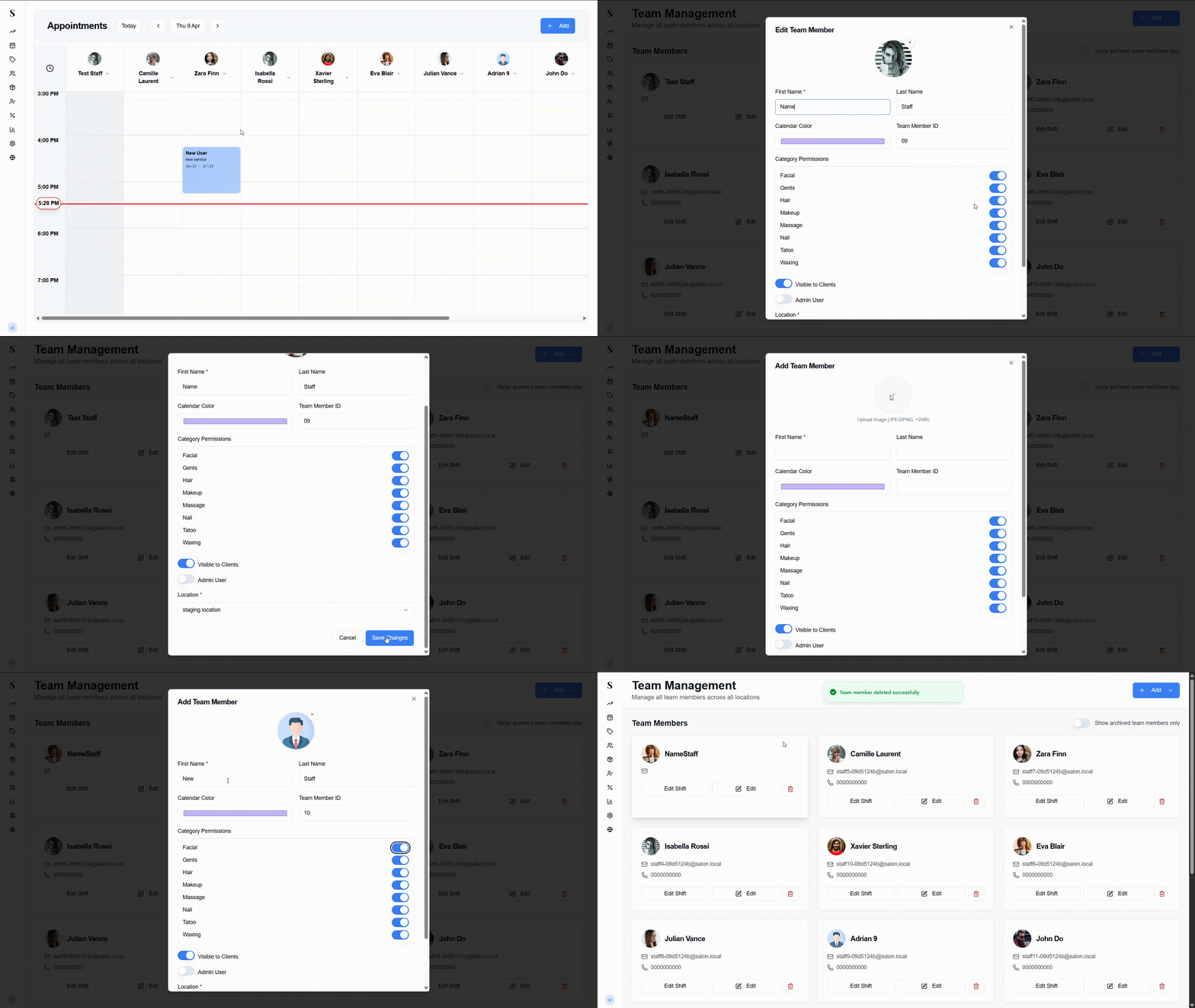
Team Members are the staff profiles that appear on the Calendar. Each card shows the staff member's photo (or initials if no photo is set), their email, and phone number.
Each card has three action buttons:
- Edit Shift — set their weekly working hours
- Edit — update their profile details
- Delete (red trash icon) — remove them permanently
To view archived staff, toggle Show archived team members only in the top right corner.
Adding a team member
Click + Add → Add Team Member. A form will pop up.
Click the + circle at the top to upload a profile photo (JPEG or PNG, under 2 MB). This is optional but recommended — it helps identify staff on the Calendar.
Enter their First Name (required) and Last Name.
Set a Calendar Color — this is the color used for their column on the Calendar. Each staff member should have a distinct color to make them easy to tell apart.
Optionally enter a Team Member ID — useful if your business uses internal staff ID numbers.
Enter their Email and Phone Number — these appear on their profile card and are used for partner login links.
Set Category Permissions — toggle on the service categories this staff member is allowed to perform (e.g., Hair, Nails, Facial). All categories are enabled by default. Staff will only appear as a booking option for the categories you enable.
Toggle Visible to Clients on if this staff member should appear in client-facing booking. This is on by default.
Toggle Admin User on if they need full access to the system (Reports, Settings, Commission, Dashboard). Off by default.
Select a Location (required).
Click Add Team Member.
Editing a team member
Click Edit on any team member card to update their photo, name, calendar color, email, phone number, category permissions, admin status, or location.
You cannot remove admin access from the last remaining admin. Make sure at least one other admin exists before making that change.
Setting working hours (Edit Shift)
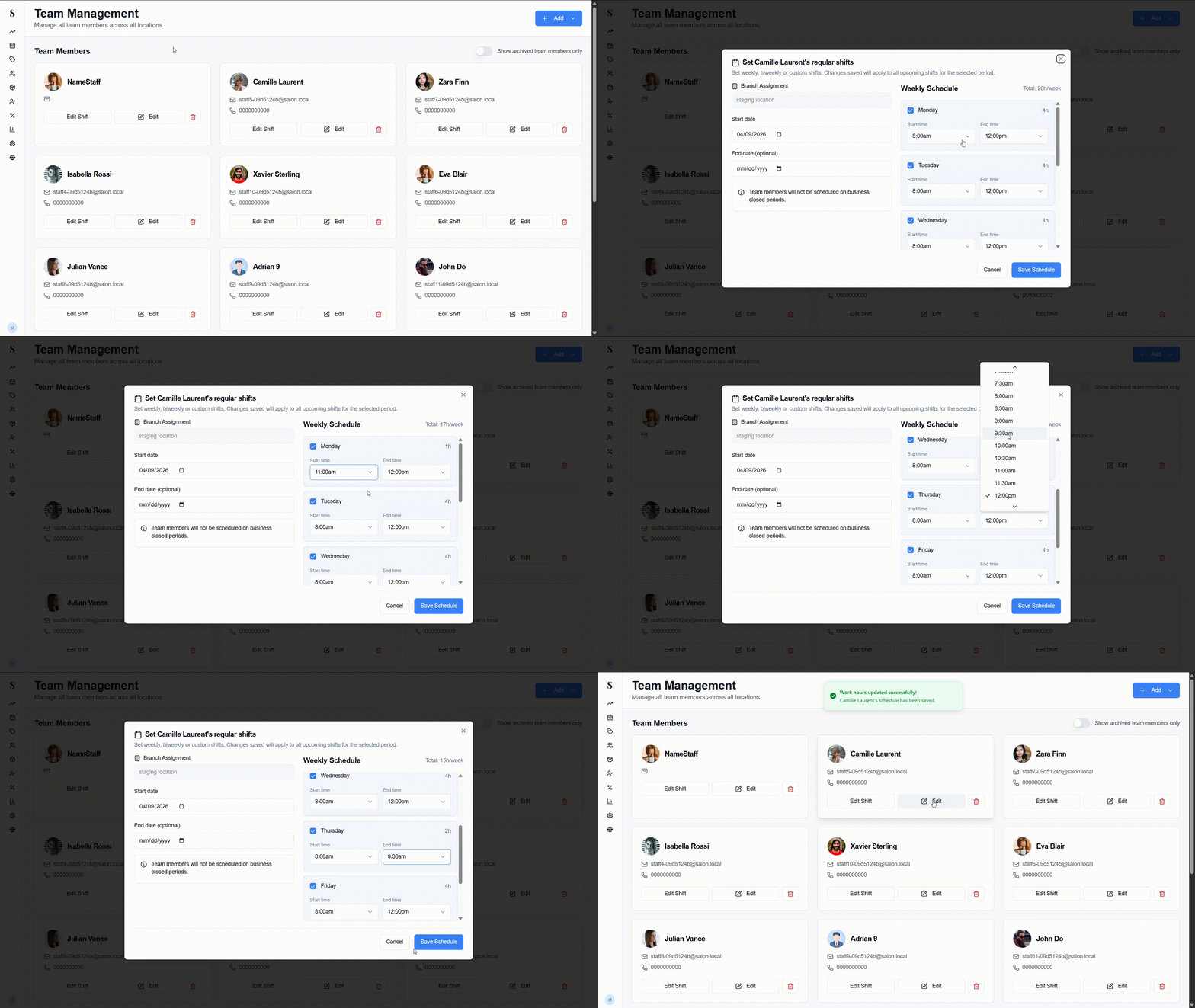
Each staff member can have their own weekly schedule so the Calendar only shows them as available when they are actually working.
Click Edit Shift on the team member's card.
For each day of the week, set their start and finish time.
Mark any day as Off if they do not work that day.
Click Save.
Authenticated Users
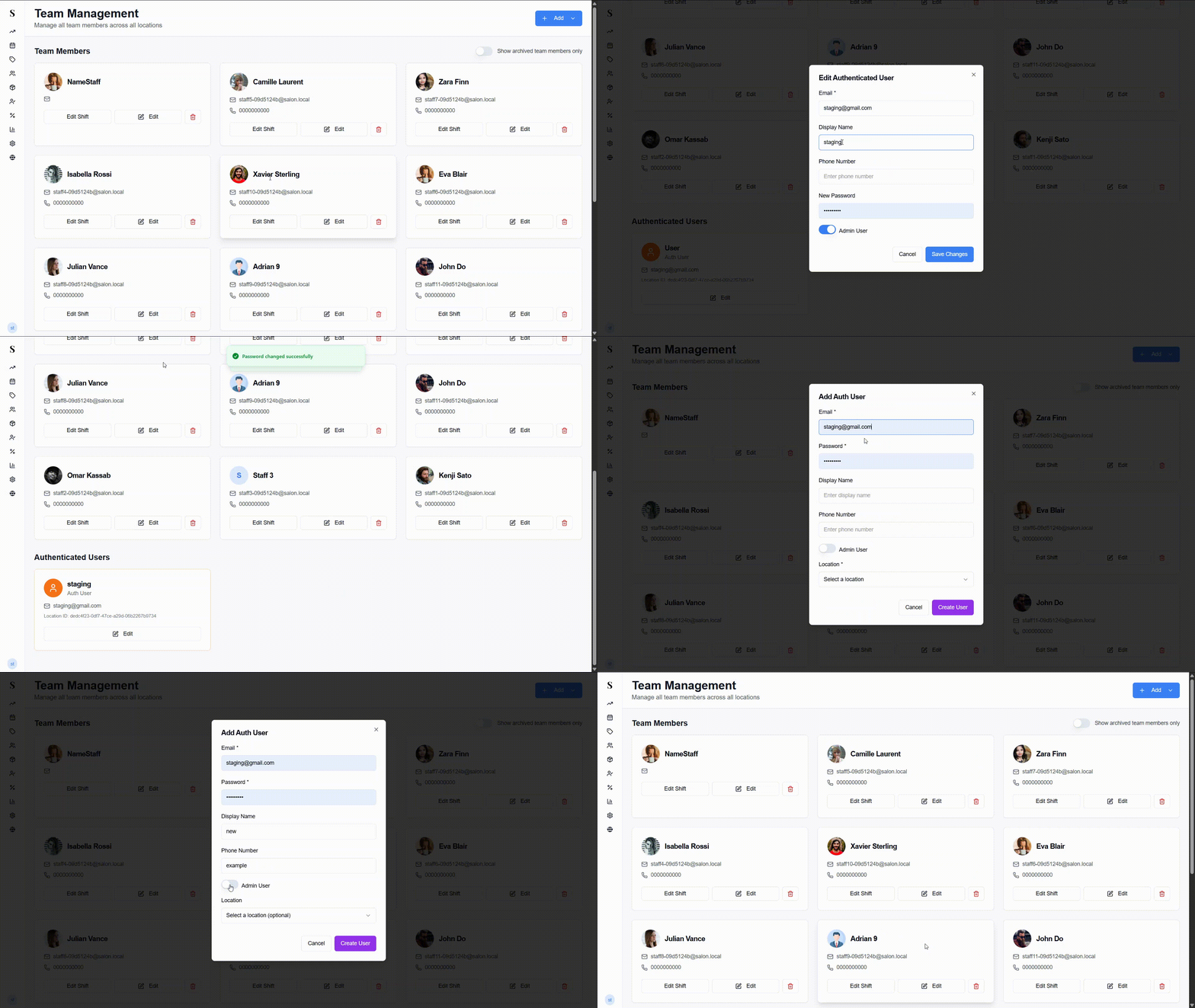
The Authenticated Users section sits below the team member grid and shows all staff login accounts. These cards have an orange border to distinguish them from team member profiles.
Each card shows the user's name, their Auth User label, email address, and Location ID.
A team member profile and a login account are two separate things. A team member profile controls how someone appears on the Calendar. A login account controls how they log in to NxCut. Most staff will need both.
Adding a login account (Auth User)
Click + Add → Add Auth User. A form will pop up.
Enter their Email (required) — this will be their username when logging in.
Set a Password (required). A 6-character password is generated automatically, or you can set your own.
Optionally enter a Display Name and Phone Number.
Toggle Admin User on if they should have full system access.
Select a Location (required).
Click Create User. The account is active immediately.
Partner login link
You can generate a quick login link that lets a team member access NxCut without needing to remember their password. This is especially useful when onboarding new staff or when someone is having trouble logging in.
Open the team member's profile by clicking Edit on their card.
Click Generate Partner Login Link.
A login link is generated. Click Send via WhatsApp to share it directly with the staff member.
The link opens NxCut and logs the staff member in automatically. Links are single-use and expire after a short period.
Partner login links are also useful for staff who work at multiple locations — you can send them a link that routes them to the correct branch automatically.
Archiving a team member
If someone leaves but you want to keep their history in the system, archive them instead of deleting.
- Open their profile and choose Archive.
- Archived members are hidden from the default view.
- Toggle Show archived team members only at the top of the page to find them again.
Quick reference
| What do you want to do? | How? |
|---|---|
| Add a new staff member | Click + Add → Add Team Member |
| Give them a login to NxCut | Click + Add → Add Auth User |
| Set when they work each week | Click Edit Shift on their card |
| Control which services they can do | Edit their profile and toggle the service categories |
| Stop them appearing to clients | Edit their profile and turn off Visible to Clients |
| Give someone full access to everything | Turn on Admin User in their profile |
| Send a quick login link via WhatsApp | Edit their profile and click Generate Partner Login Link |
| Hide a staff member who left | Use Archive — their history stays, they just disappear from the main view |